User Defined Transformers
Introduction
Screenshot pending re-hosting. Open the Vydon UI under Transformers to see the user-defined gallery.
User defined Transformers are a great way to configure a system transformer with your own presets and publish it everywhere. User defined transformers are saved at the account level and can be used across multiple jobs, saving you time during the schema configuration process. There are two ways to create User Defined Transformers:
- Cloning System transformers
- Creating a Custom Code Transformer
The following sections will walk through how you can create both types of User Defined Transformers.
Cloning System Transformers
Vydon ships with a number of system defined transformers that you can clone, update the configurations and then save it as a User Defined Transformer. This is helpful if you want to ensure that some transformers have certain configurations. For example, you may want to enforce that every column that uses a generate_int64 transformer only produces positive integers. Below we show how to clone a system transformer and use that transformer within a schema mapping.
Creating a User Defined Transformer
In order to create a user defined transformer, follow these steps:
- Navigate to the Transformers page and click on + New Transformer.
- You'll be brought to the new transformer page where you can select a base transformer. A base transformer serves as the blueprint for the user defined transformer. Select the base transformer for your user defined transformer.
Screenshot pending re-hosting (new transformer base picker).
- Once you've selected a base transformer, you'll be prompted to give the transformer a name and description. Additionally, you can preset custom default configurations depending on the transformer. Fill out the details and click save.
Screenshot pending re-hosting (new transformer config form).
Using a User Defined Transformer
- Once you've created a user defined transformer, you'll see it appear in the transformer list in Transformers main page as well as the Schema configuration page. Above, we created a user defined transformer
called
custom-float-transformer, we can now see it both places.
In the transformers table under the User Defined Transformer tab.
Screenshot pending re-hosting (transformers gallery showing the new entry).
In the Schema configuration page in the transformer select.
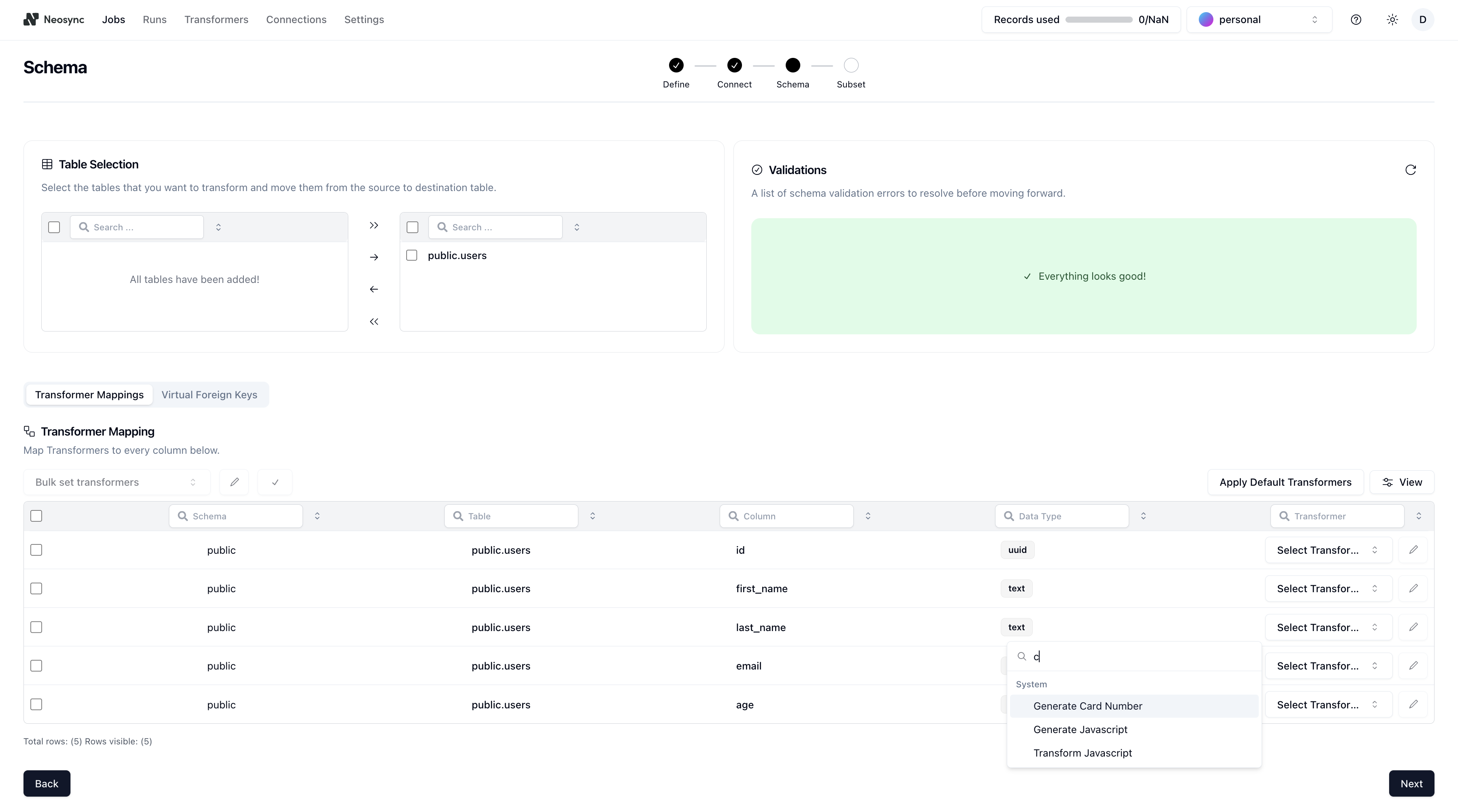
Now we can finish the rest of our job configuration and the newly created user defined transformer will be available in the transformer dropdown in the schema page.
Custom Code Transformers
Vydon supports the ability to write your own custom logic using JavaScript.
There exist two different transformers that enable this. One of them is input-free, while the other is input-full, and allows you to transform incoming values.
transform_javascripttakes in and allows you to modify input. This transformer may be used in Sync jobs.generate_javascripttakes in no input and only expects an output. This transformer may be used in both Sync and Generate jobs.
To create your own custom code transformer, check out the Creating a Custom Code Transformer Guide.